How to close out and collect every appointment in trimly
If Performance says you have collected €0 and no reviews ever come in, the likeliest reason is that nobody is closing out visits. Closing an appointment tells trimly how it ended, paid or with the client never turning up, and it takes a few seconds from «Today». Your daily take, your numbers and the review request all depend on that tap.
1. Open «Today» and check «To close out»
When an appointment ends and nobody has closed it, it shows up above today's calendar in the «To close out» card: the time, the client and the service, oldest first. Anything left open yesterday shows up too, tagged «yesterday». Each row carries its own two buttons, «Collect» and «No-show», with nothing else to open. If more than three pile up, the card shows the first two and keeps the rest behind «Show N more», so it does not bury your calendar. Each team member sees only their own appointments; the owner and the manager see the whole shop's, and the number next to «Today» in the menu adds them to the new bookings, so it goes down as you close them out.

2. «Collect»: choose how they paid
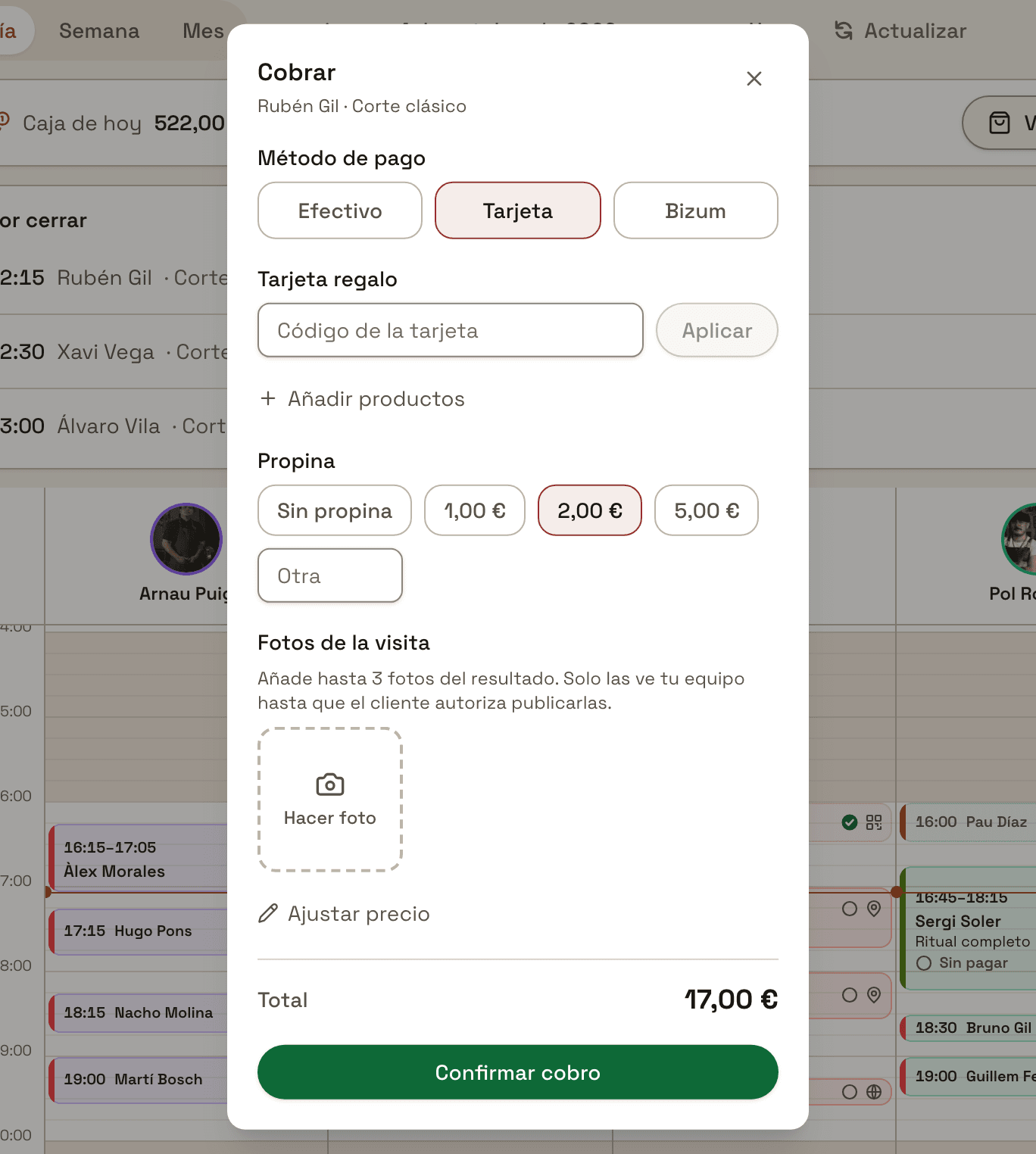
Press «Collect» and the payment sheet opens, with the client and the service at the top. Under «Payment method» pick Cash, Card or Bizum; it starts on Cash. If the client already paid everything online when booking, there is nothing to choose: «Already paid online» shows instead. If they only left a deposit, an «Already paid online» line shows what they paid ahead, and the total already takes it off. «Total», at the very bottom, is what you have to collect now. Press «Confirm charge» and the visit is closed; if it is today's, the message that pops up carries «Book next visit», in case the client wants to book the next one there and then.
3. Gift card, pass and products
If the client pays with a gift card, type its code into «Gift card» and press «Apply»: the balance comes off the service, in full or in part, and whatever is left you collect with the method you pick. If they have a pass for that same service with sessions left, «Use pass» appears at the top; tap it and the service comes to 0, because the pass was paid for when it was bought, and one session is deducted. And if they take something home from the shelf, «Add products» adds it on the same sheet: in the take, services and products are recorded separately.
4. Tip, photos and final price
Under «Tip» you have «No tip», three quick amounts of €1, €2 and €5, and «Other» to type your own. It is added to the total but kept apart: it does not count as the price of the service and, if you have VeriFactu switched on, it stays out of the invoice issued when you confirm the charge. In «Visit photos» you can take up to three photos of the result; only your team sees them until the client agrees to publish them, and once you have taken one, «Ask the customer» puts the question to them on your own phone so they decide. If you ended up charging something different, for a discount or an extra, press «Adjust price» and type what you actually charged: that is the figure that counts in the take and in Performance.
5. «No-show»: when the client does not turn up
If the client never showed up, press «No-show». The appointment is closed with no charge, leaves «To close out» and is recorded as a no-show: the next time you open one of their appointments you will see how many they have, they appear under the «No-shows» filter in «Clients», and it counts in the team's «No-shows» column in Performance. Pressed the wrong button? For a few seconds the message at the bottom carries «Undo»; after that, open the appointment and press «Undo “No-show”». And if under «Settings» → «Payments and deposits» you turn on «Require a deposit after several no-shows», these are the no-shows that count towards asking them for a deposit the next time they book.
More ways to cut no-shows6. Or from the appointment itself
You don't have to wait for it to show up in «To close out». Tap the visit in the calendar and the same pair is at the bottom: «Collect» with the amount still owed (or «Mark complete» if they already paid it all online), and «No-show», next to «Reschedule». They lead to the same place as in the card. That is also how you close out older visits, because «To close out» only lists today's and yesterday's; in the calendar you can spot them because they carry the «Unpaid» mark until you collect them, and then they switch to «Paid». You don't have to wait for the slot to end either: if a client does not arrive, mark it from the appointment and that time is free to fit someone else in. And if you would rather always close out this way, you can remove the card under «Settings» → «Booking rules» → «Show “To close out” on Today»; the visits stay open just the same until you close them.
7. «Today's take»: what you have collected so far
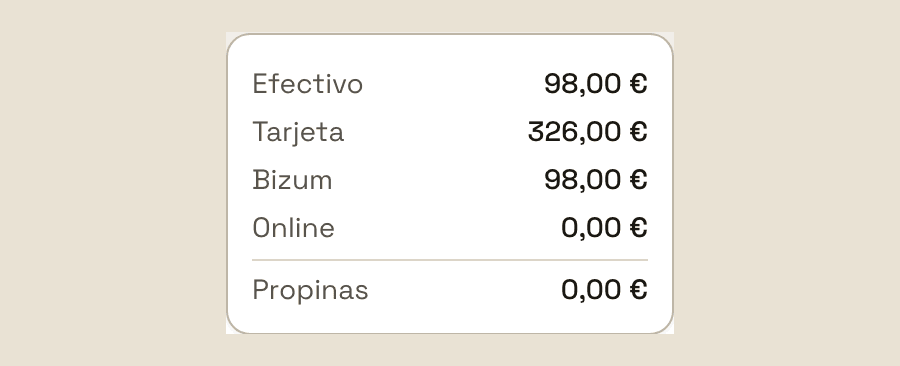
In the bar at the top of «Today», next to the coin icon, is what you have collected so far today; on a larger screen it carries its name, «Today's take». Tap it and the split opens: Cash, Card, Bizum and Online, with Tips on a line of their own; if you have sold products, it also separates services from products. It only adds up what you have closed out: an uncollected visit is not in the take even if the money is already in the drawer. Each team member sees only their own.
8. Performance: «Booked» versus «Collected»
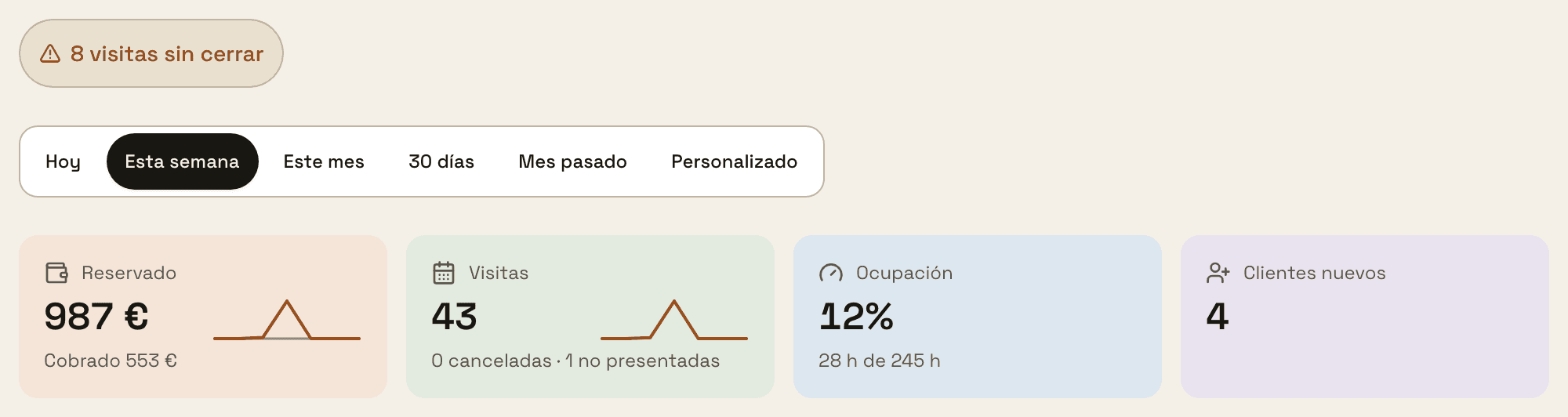
In «Performance», «Booked» is what the period's calendar is worth, including appointments still to come, and «Collected», just below it, is only what you have closed out with a charge. If nobody closes out visits, «Collected» stays at €0 however full the calendar is. While past visits are still open, a «N visits not closed» warning sits at the top and takes you to «Today». And a client who did not come and was never marked still counts in «Booked» and «Visits» as if they had; with «No-show» they move into the no-show count.
9. Reviews are only requested for collected visits
About two hours after a collected visit ends (or as soon as you close it, if you do that later), trimly asks the client to rate you, through whichever channel you have ticked under «Settings» → «Customer messages» → «Review request». If your Google listing is linked and «Show my Google reviews» is on, the link takes them straight to writing the review on Google. A visit left open asks for nothing, and neither does one marked «No-show».
Nothing tells you a review was never requested. The request can go out for up to seven days after the visit: collect it the next day and it still arrives, but close it out after a week and that client will never get the link.
Collect, close out and ask for the review, no paperwork
With trimly every visit closes in two taps from the calendar, the day's take adds itself up and the review request goes out without you having to remember.
Create my website