How to set up the booking button on your Google listing with trimly
If your Google listing sends people to Booksy, Fresha or Treatwell, to a website where nobody can book, or nowhere at all, whoever finds you on the map ends up booking somewhere else or not booking at all. The fix is two links you copy from trimly and paste into your listing. You set them once, and from then on trimly tells you whether they work and how many clients they bring in.
1. What your listing should end up with
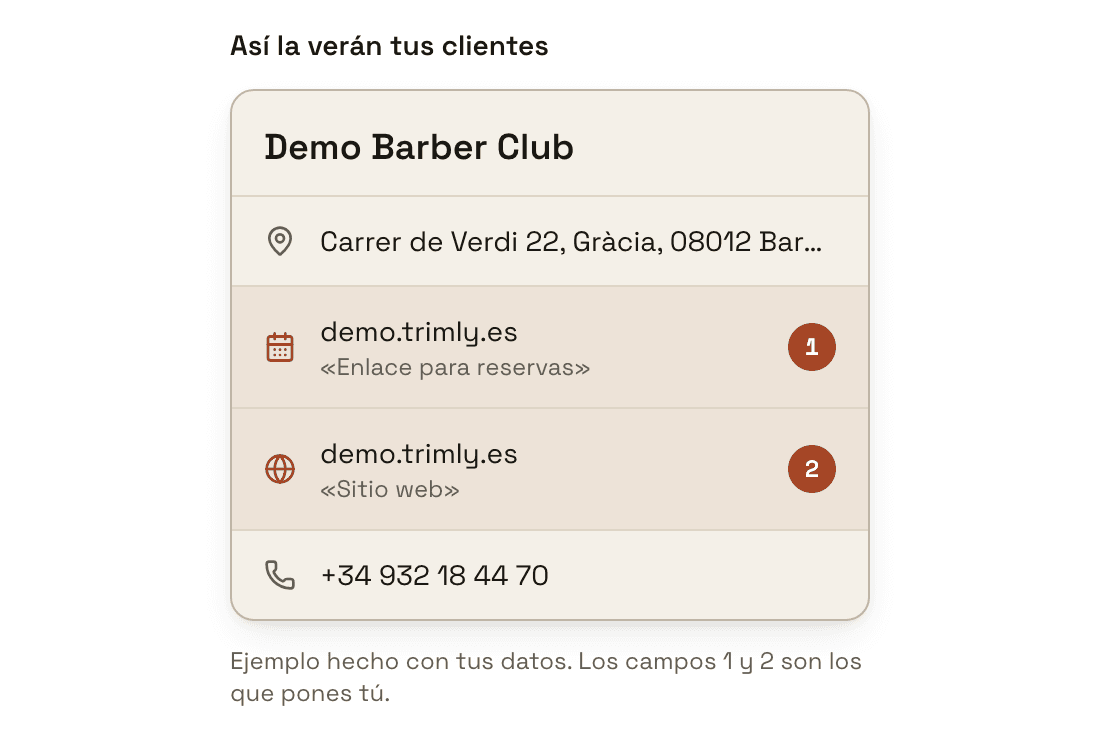
Your Google listing has two places that lead off Google: the booking button and the website. Both should end up at trimly. In trimly go to "Settings" → "Google listing" and scroll down to the "How your listing should look" card. There you will see "What your clients will see": your finished listing, built from your own details, with two fields marked. 1 is "Booking link", the button a client books with; 2 is "Website", the one that opens your page. Everything else on the listing stays as it is.
2. Before you start: the listing has to be yours
Only the verified owner of the Google listing can change these two fields. If someone else set it up, such as a business partner, the agency that built your website or the previous owner of the premises, ask whoever manages it. If you have no listing yet, create and verify one before going on. Then look at the top of "Google listing": if it says "Your Google listing", it is already linked in trimly; if it says "Find your business on Google", link it first. Pasting the links does not need it, but without a linked listing we cannot check the website step.
How to link your Google listing in trimly3. Copy your two links
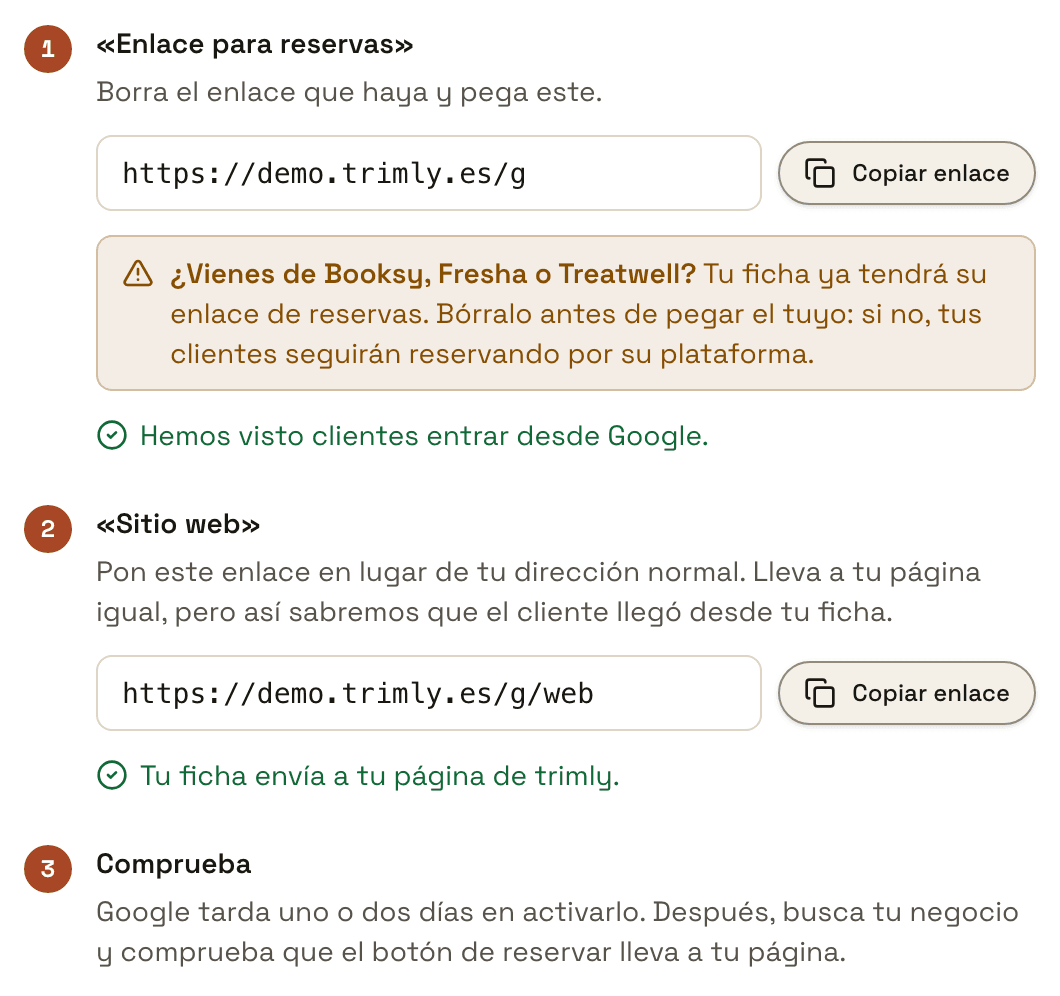
Each step in "How your listing should look" comes with its link and a "Copy link" button. Step 1’s link ends in /g and opens your booking page directly; step 2’s ends in /g/web and opens your site’s home page. In the picture they are the example shop’s, https://demo.trimly.es/g and https://demo.trimly.es/g/web; yours carry your business name, or your own domain if you have one. They are short on purpose, in case you have to type them by hand. They lead to the same pages as always, but they tell us the client came from your Google listing. You also have them in "Settings" → "Links and QR", as "Booking button on Google" and "Website on your Google listing".
4. Paste the booking link into your listing
Search for your business on Google while signed in to the account that manages the listing. Booking links have their own section, "Booking": on Search you see it right on your profile, and on Google Maps it is inside "Edit profile". Select "Add link" (or "Add another link" if there is one already), paste your /g link and select "Save". The buttons move around a little between computer, phone and the Google Maps app; if you cannot find them, Google goes through it step by step in its help.
How to add booking links, in Google’s help5. Remove the Booksy, Fresha or Treatwell link
If you are coming from one of those platforms, your listing will already have their booking link, and it can be there in two ways. If someone pasted it by hand, delete it like any other link in the "Booking" section. If the platform put it there itself, as one of the providers Google works with, that same section shows "Remove Provider": according to Google, the platform has 5 days to take it down from when you ask. Meanwhile, if your listing ends up with several links, Google lets you mark yours as preferred with "Set preferred link", so it shows at the top.
If their link stays, your listing keeps sending clients to their platform even with yours pasted correctly. From the outside it looks as if trimly gets no bookings from Google, when really someone else is taking them. That is why step 1 asks you to delete whatever link is there before pasting yours.
6. Swap your listing’s website for your /g/web link
In "Edit profile", in the "Website" field, replace whatever is there (your usual address, your Instagram or a platform’s link) with your /g/web link and save. It opens the same page as your usual address, but with the usual one we could not tell someone tapping your listing from someone who found you among the search results, and it would all end up under "Google search". Under step 2 we tell you what your listing has now: "Your listing points at your trimly page." if it is right, "It points at your plain address, so we can't tell who comes from your listing. Replace it with this link." if it has your usual trimly address without /g/web, something like "It points at booksy.com right now. Replace it with this link." if it points elsewhere, or "Your listing has no website.". We read that from Google ourselves: until your listing is right we look at it every day, and after that once a week. So as soon as Google publishes your change, the message updates the next day.
7. Check the button goes to your page
Google takes a day or two to activate changes. After that, search for your business on Google, or press "Open my listing on Google Maps" in step 3 if your listing is linked, and tap the booking button: your trimly booking page should open. Google does not show us the booking link on your listing, so the only proof that it is there is someone coming in through it. When that happens, under step 1 "We haven't seen anyone arrive from Google yet." changes to "We've seen customers arrive from Google.". Your own visits do not count while you are signed in to trimly in that browser, so your test will not turn it green: the first client who comes in will.
8. See how many clients Google brings you
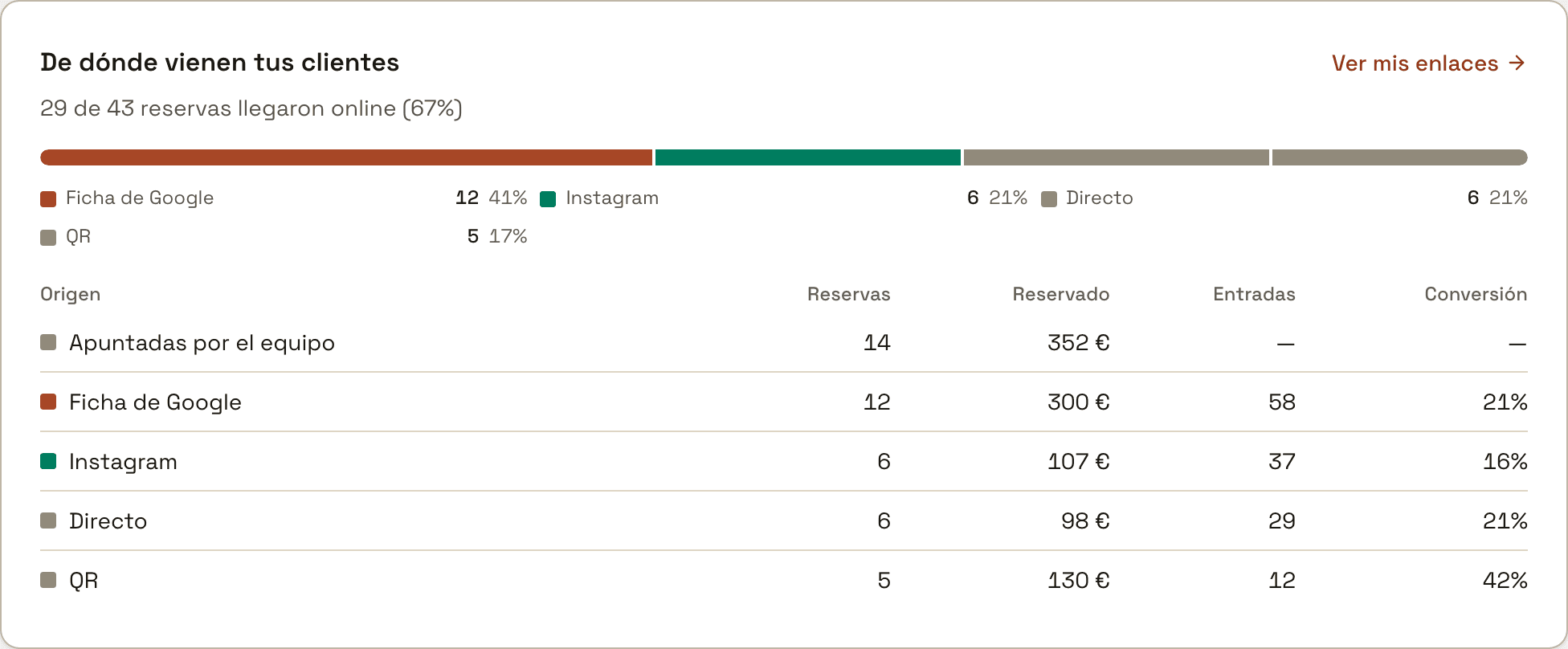
In "Settings" → "Links and QR" you have this week’s and last week’s clicks on "Booking button on Google" and on "Website on your Google listing". In "Performance", the "Where your clients come from" card has a "Google listing" row with the "Bookings" that came that way, the amount "Booked", the "Entries" and the "Conversion": in the example, 58 entries that turned into 12 bookings, 21%. If your listing still sends people to another site or has none, "Fix the listing" appears next to "Google listing" and brings you back to this page; if it has your plain address, it appears next to "Google search", which is where those visits end up. "Links and QR" also has the "Instagram bio link" and the "QR for the counter", which measure the same thing for each place.
 How to share your booking link and see which place brings you clients
Not on trimly yet?
trimly is booking software for your business: a flat fee with no commission, your clients stay yours, and the booking button on your Google listing leads to your own diary.
Create my website