How to share your booking link and see which place brings you clients
Your site has been open for a week or two and no online booking has come in yet. It is almost always the same thing: the link is not where your clients look. Here is which link goes where, and how to see afterwards which one brings you bookings.
1. Open "Links and QR"
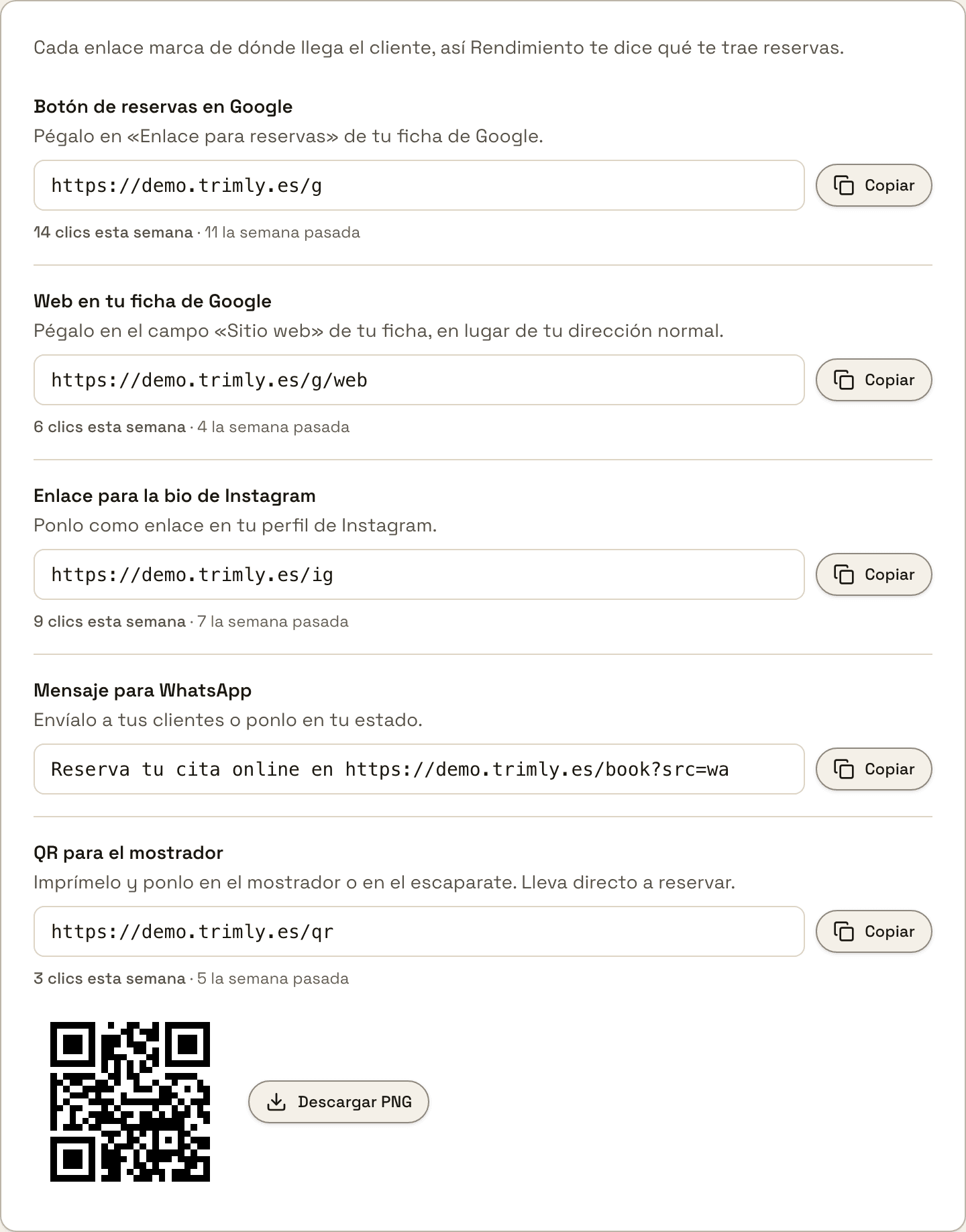
In "Settings", go to "Links and QR". There are five links, one per place: the booking button on Google, the website on your Google listing, your Instagram bio, a WhatsApp message and a QR for the counter. They all lead to your site, but each one leaves a mark of where the client came from, and with that mark "Performance" can later tell you what brings bookings. Each row has its own "Copy" button. In each place, paste the link from its own row, not the plain address of your site: that one works just as well, but leaves no mark. Owners and managers can see this page.
2. Google: the booking button and the website on your listing
The first two go on your Google listing, which is what people see when they look you up on Google or Maps. "Booking button on Google" goes into the booking link field of the listing and leads straight to booking. "Website on your Google listing" goes into the Website field, instead of your plain address, and opens your site. In "Performance" both count as "Google listing". How to reach those two fields inside Google is covered step by step in its own guide.
How to set up the booking button on your Google listing with trimly3. Instagram: the link in your bio
"Instagram bio link" goes in as the link on your profile. It opens your site, not the booking directly: someone arriving from Instagram sees your services and prices first, and books from there. Make it the only link on your profile, because every extra tap is someone dropping off on the way. And when you post a story with free slots, put the same link in the link sticker.
How to get more clients with your barbershop's Instagram4. WhatsApp: a message ready to send
"WhatsApp message" is not just a link but the whole message: "Book your appointment online at…" with your booking address at the end. "Copy" takes the full message. Send it to your regular clients, paste it into your group if you have one, and post it as your status. You can change the wording, but leave the address exactly as it is: the "?src=wa" at the end is the mark, and without it those bookings can show up as "Direct". This row has no click counter; you see its bookings in "Performance", as "WhatsApp".
5. The QR for the counter
Below the last link is the QR, and "Download PNG" gives you the image ready to print. Put it on the counter, by the mirror or in the window: it goes straight to booking, so the client paying at the counter books the next visit there and then, and someone walking past while you are closed books without calling you. If you would rather design the poster yourself, make the QR from the link in that row, the one ending in "/qr". And if you ever change your trimly.es address, the printed QR stops working: download it again and reprint it.
6. A link for each team member
Each team member also has their own link in "My Profile", on the "Booking link" card: whoever opens it books directly with that person, without seeing the rest of the team. It has "Copy link", "Share" and "Download QR", and it is the one that goes on the personal Instagram of each team member or next to their chair. As the owner you also have it under "Team": open the menu on their row and choose "Share". This link carries no place mark, so "Performance" files those bookings by the page the client arrives from, Instagram for example, and as "Direct" when it cannot tell.
7. The clicks tell you whether the link is in place
Under each link there is a line like "14 clicks this week · 11 last week". It counts the times someone opened that link, whether they booked or not, so it is the first thing to move: it tells you the link is where it should be before the first booking arrives. If the Google one stays on "No clicks this week" week after week, check that it really is saved on your listing. Pasting the link into a chat does not add a click, because the preview WhatsApp generates does not count, and neither do your own clicks while you are signed in to trimly in that browser: to test it, open it on a phone where you are not signed in to trimly, or wait for your first clients.
8. See what brings bookings in "Performance"
In "Performance", scroll down to "Where your clients come from". At the top is the sentence that matters, such as "29 of 43 bookings arrived online (67%)", and a bar splitting the online bookings by source. The table gives you, for each place, "Bookings", "Booked" (what those appointments add up to), "Entries" (the times someone reached your site from there) and "Conversion" (bookings divided by entries). In the example, the Google listing brings the most bookings, and the QR, with only 12 entries, converts 42%: whoever scans it is already standing in front of you. "Entered by staff" are the appointments the team types in by hand. The mark stays on the phone of the client for 30 days: if they open your Instagram link today and book two weeks from now, it counts as Instagram. "See my links" takes you back to "Links and QR".
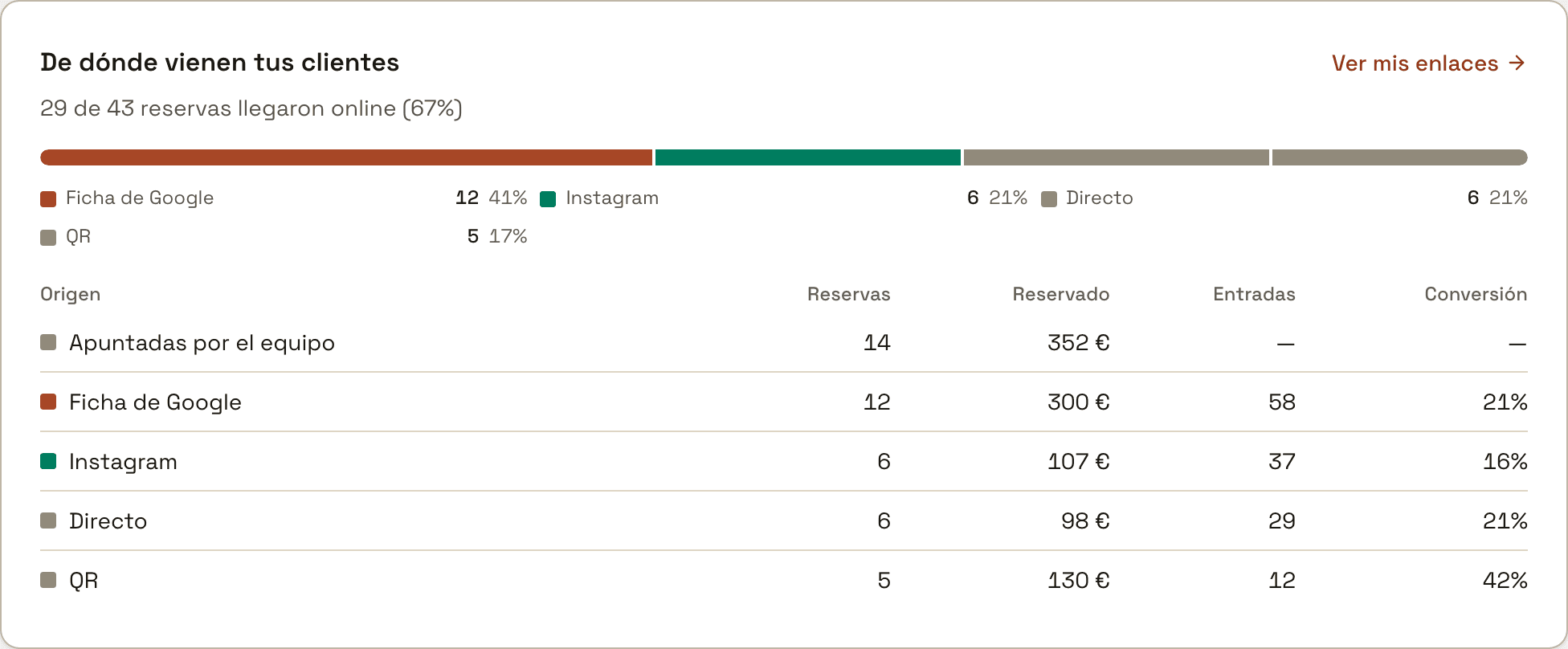
"Performance" counts each booking on the day of the appointment, not the day it was made. "This week" is selected at the top by default, so a booking that came in today from Instagram for next week does not show yet. Choose "This month", or a "Custom" period that reaches the date of the appointment.
Not using trimly yet?
trimly is booking software built for appointment-based businesses: a flat fee with no commission, your clients stay yours, and every link tells you what brings you bookings.
Create my website