How to invoice your clients with VeriFactu in trimly
Self-employed and business clients will ask you for an invoice with their tax ID (NIF) so they can deduct the VAT (IVA in Spain), and invoices that come out of software have to reach the Spanish Tax Agency (AEAT) through VeriFactu. trimly does both from the calendar: when you collect a visit it issues the ticket, which is a simplified invoice with its QR code, and if the client needs an invoice in their name you type their NIF, their name and their address and it is done. This guide is for the business owner, who is the one who switches VeriFactu on.
1. Before you start: what you need
Have four things to hand. Your NIF or CIF and your legal name, exactly as the Tax Agency has them. Your digital certificate (issued by the FNMT or another recognised authority) as a .p12 or .pfx file, with its password: it signs every submission to the AEAT and has to be the business owner's. Your business address in «Settings» → «Business details» → «Address», because every invoice with the client's details carries it. And that you charge VAT under the common Spanish system: if your business is taxed in the Basque Country or Navarre, which run their own systems, or invoices with IGIC (Canary Islands) or IPSI (Ceuta and Melilla), trimly cannot issue your invoices yet. On the current timetable, companies that invoice with software must use a system such as VeriFactu from 1 January 2027, and the self-employed from 1 July 2027. Only the owner sees «VeriFactu and invoices» in «Settings».
VeriFactu on the Spanish Tax Agency website2. Switch VeriFactu on in «VeriFactu and invoices»
Go to «Settings» → «VeriFactu and invoices». Under «Fiscal details» type your «NIF / CIF» and your «Legal name». «Invoice series» is the prefix of your invoice numbers; if you leave it empty, trimly uses the year (2026/1, 2026/2…). Under «Fiscal regime» choose «VeriFactu», under «Mode» leave «VERI*FACTU» and save. Then, under «Digital certificate», choose your .p12 or .pfx file, type its password and press «Upload certificate»: trimly stores it encrypted and warns you before it expires. With the certificate uploaded, go back to «Fiscal details», turn on «Enable sending to AEAT» and save.
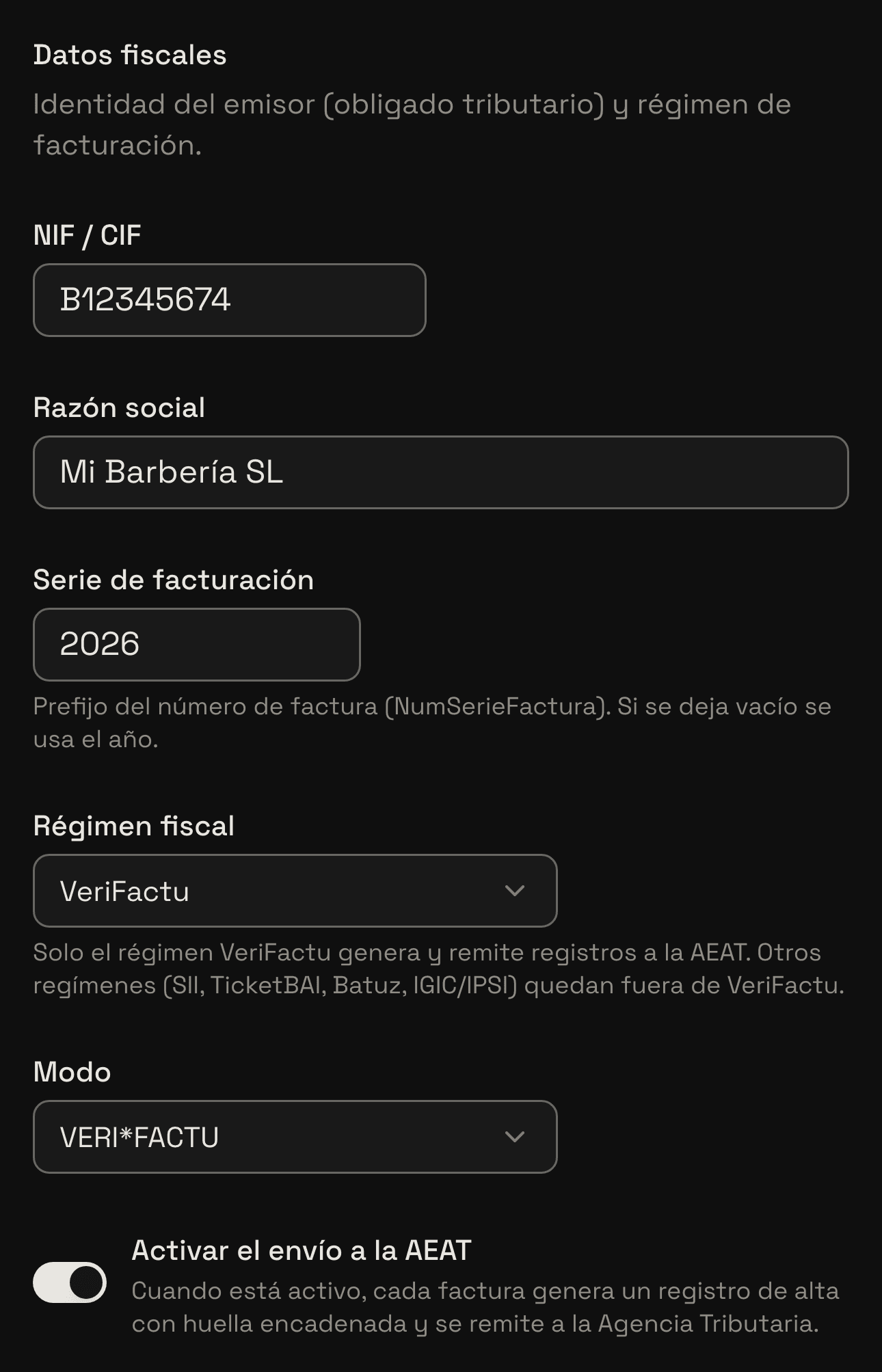
From the moment you turn sending on, every payment you collect creates a real invoice at the Tax Agency, with its consecutive number and no draft. Do not switch it on to try it out: do it on the day you start invoicing with trimly.
3. Every payment issues its simplified invoice
From then on there is nothing for you to do about the ticket. When you collect a visit with «Collect» → «Confirm charge», trimly issues a simplified invoice for what you collect at that moment and sends it to the AEAT. If the client paid online when booking, the invoice for that payment is issued when they pay, and when you collect at the shop only what is left is invoiced. Passes and gift cards are invoiced when you sell them, so redeeming one does not issue another invoice. The tip never goes on the invoice. Every invoice carries its QR code, which the client can use to check it on the AEAT website, and the words «VERI*FACTU».
How to close out and collect every appointment4. How the invoice reaches the client
Your client has their invoices on your business's website, in «My appointments»: every collected visit shows «View receipt», which opens the invoice ready to print or save as a PDF from their phone. If they ask for it on the spot, go to «Settings» → «VeriFactu and invoices» → «View VeriFactu records», tap the three dots on that invoice and choose «Print ticket». The same page opens: you can print it, or copy its address and send it to them on WhatsApp.
5. If they want an invoice with their details, make it when you collect
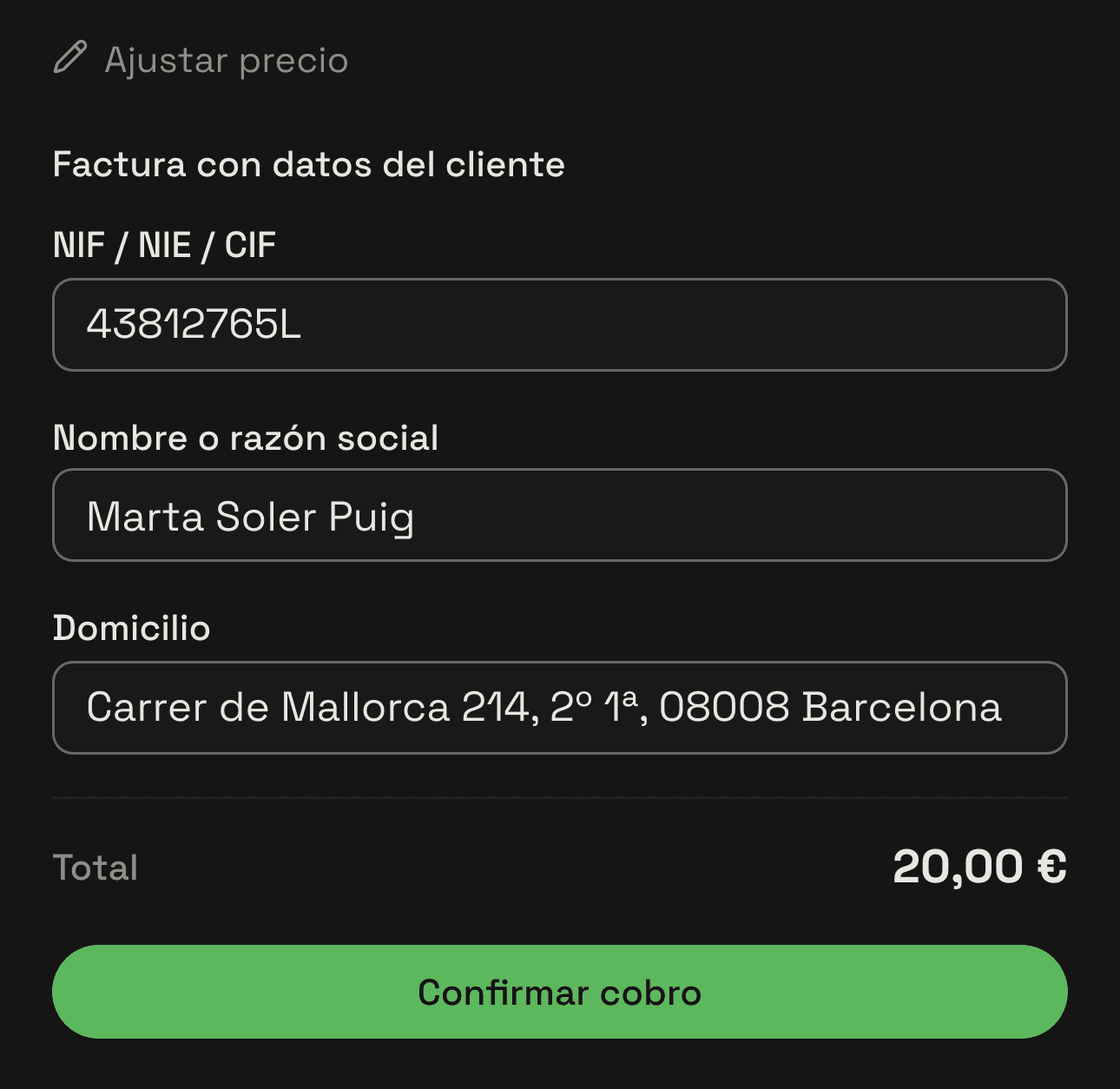
A self-employed client or a company needs an invoice in their name to deduct the VAT. When they ask for one, on the «Collect» sheet tap «Invoice with the client's details» and fill in «Spanish tax ID (NIF / NIE / CIF)», «Full name or company name» and «Address». The NIF is checked as you type it: if the letter does not match, you are told before you collect, and it makes no difference whether you type it with dashes or dots. Press «Confirm charge» and, instead of the ticket, a full invoice with their details is issued. Anyone on your team who collects visits can do it. If you open the section and leave it empty, the visit is collected as usual, with its ticket.
6. If you already collected it, make it from the appointment
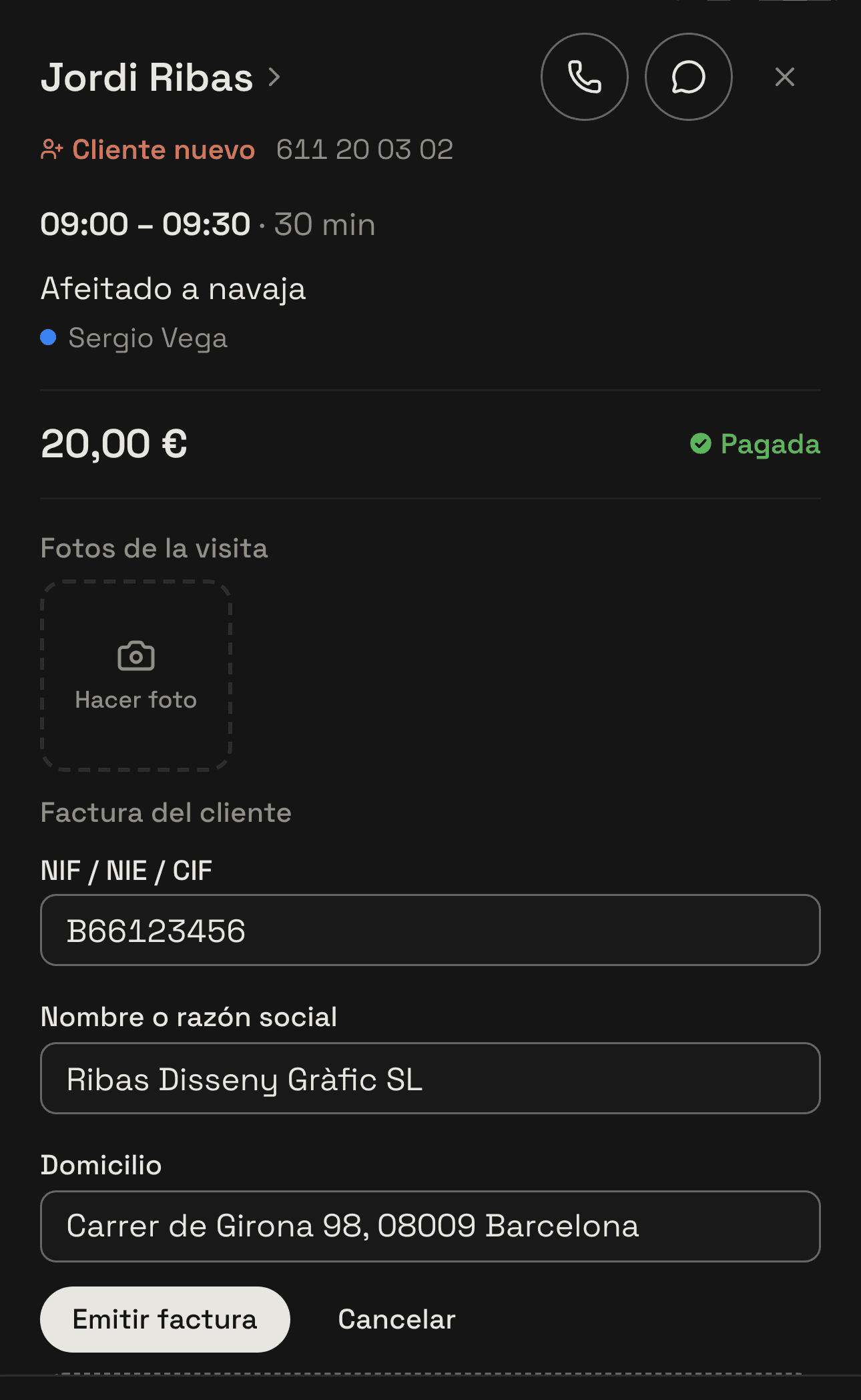
Often the client asks for it later, or had already paid online when booking. Tap the visit in the calendar: collected visits show «Client invoice». Press «Invoice with the client's details», fill in the three fields and tap «Issue invoice». trimly issues a single full invoice that replaces every ticket of that visit, online deposit included, and the button changes to «View invoice». Those tickets are not cancelled, because that is what the AEAT requires, and the new invoice states which ones it replaces. Each visit has only one invoice with the client's details.
7. What the invoice looks like
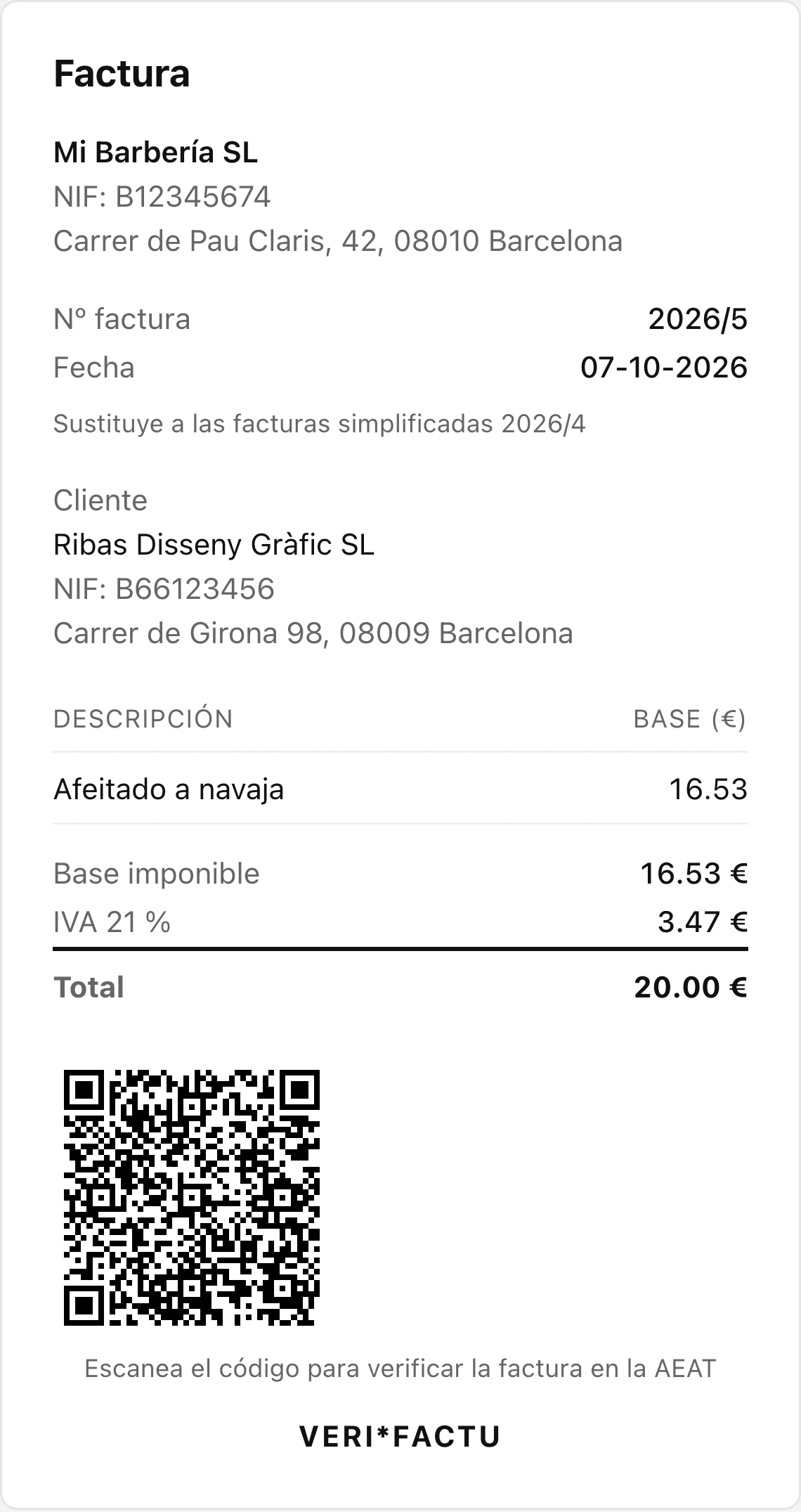
The invoice with the client's details is titled «Invoice» and carries your business details with its address, the number and the date, the client's details, each service with its price before VAT, the taxable base, the VAT with its rate, the total and the QR code. If you issue it on a different day from the visit, it also shows the date you carried out the service, and if it replaces tickets, it says which ones. It opens, prints and shares just like the ticket: with «View invoice» on the appointment, from the client's «My appointments» or from the records.
8. If you make a mistake: cancel or correct
An issued invoice cannot be edited: it is corrected with another one. In «Settings» → «VeriFactu and invoices» → «View VeriFactu records», tap the three dots on the invoice. «Cancel» cancels it at the AEAT and asks you to type its number to confirm; if it was an invoice with the client's details typed wrong, once it is cancelled you issue it again from the appointment with the right details. «Correct» issues a corrective invoice when what changes is the amount. Tickets that a full invoice replaced show as «Replaced by invoice…» and are not corrected separately: correct the full invoice. Only the owner can cancel or correct, and only invoices the AEAT has already accepted.
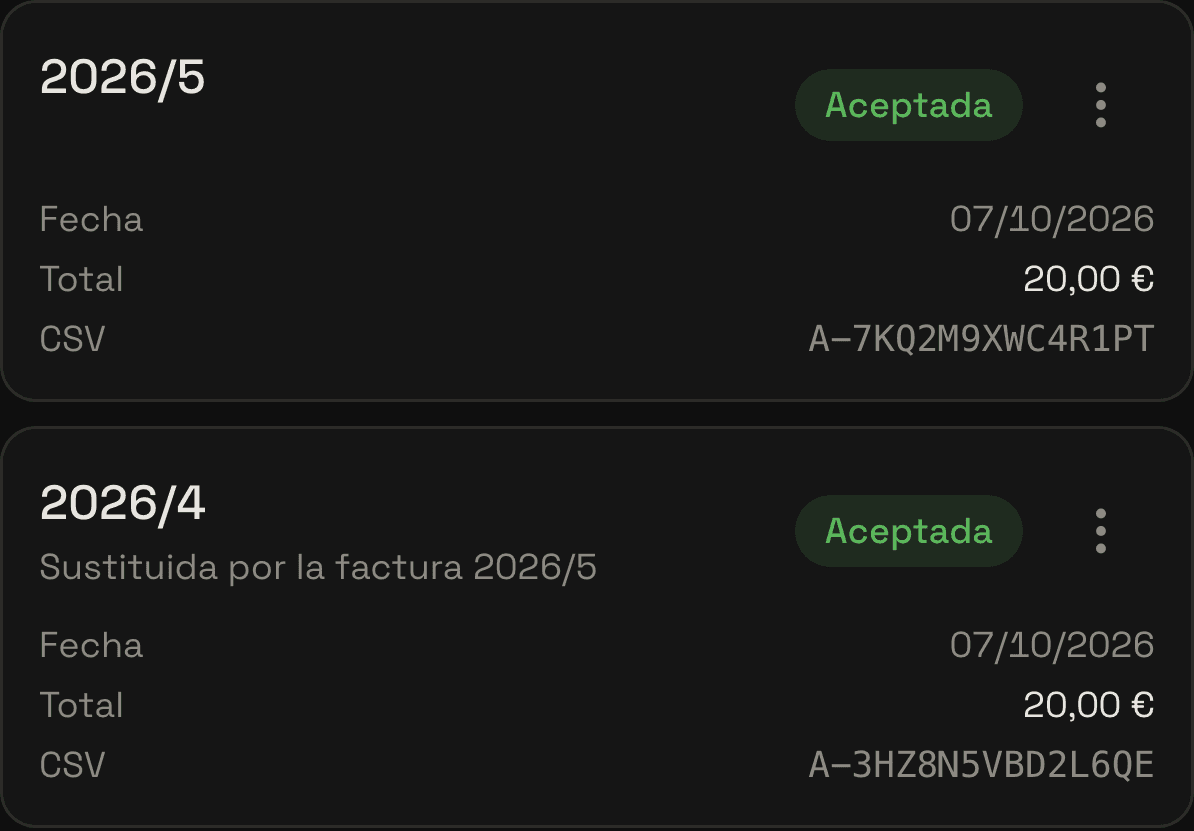
If you refund an online payment for a visit that already has an invoice with the client's details, trimly does not cancel that invoice by itself. Check it in the records and cancel or correct it according to what you refunded.
9. What you hand to your accountant
In «View VeriFactu records», under «Export for your accountant», pick this quarter, the previous one or the year and press «Export CSV for your accountant»: you download a file that opens in Excel with each invoice's number, date, client and client NIF, base, VAT and status at the AEAT. Invoices that replace tickets come out with no amounts and the note «Sustitutiva F3 de…», which the export always writes in Spanish: it marks a replacement invoice (type F3 for the AEAT) and is followed by the numbers of the tickets it replaces. The amounts are left out because that VAT is already in those tickets, so your accountant does not count it twice. If you sell products, state under «Selling products», on the same VeriFactu screen, whether you are under the standard regime (régimen general) or under recargo de equivalencia, the special VAT scheme for sole traders who resell goods.
10. What trimly does not do yet
For now the invoice with the client's details accepts Spanish NIF, NIE and CIF numbers; if the client has a VAT number from another country, make the invoice outside trimly. Nor is it issued for a sale of products only, or for passes or gift cards, which come with their ticket. And if you do not have VeriFactu switched on, trimly does not issue invoices: in «My appointments» your client sees «View payment receipt», which opens a payment receipt that says clearly it is not an invoice.
Invoice every payment, no paperwork
With trimly the ticket goes out on its own when you collect, the invoice with the client's details takes a few seconds and your accountant gets the quarter in one file.
Create my website